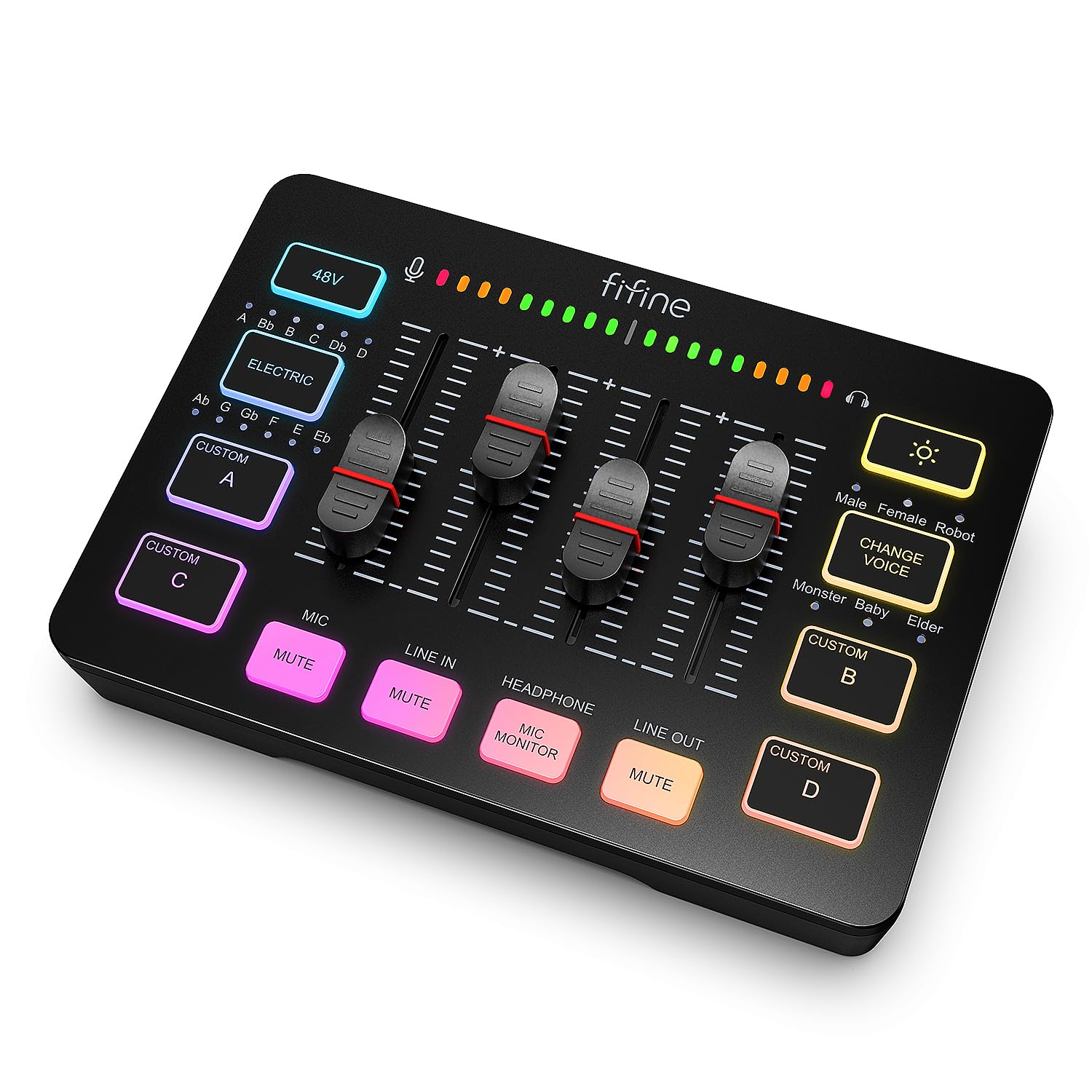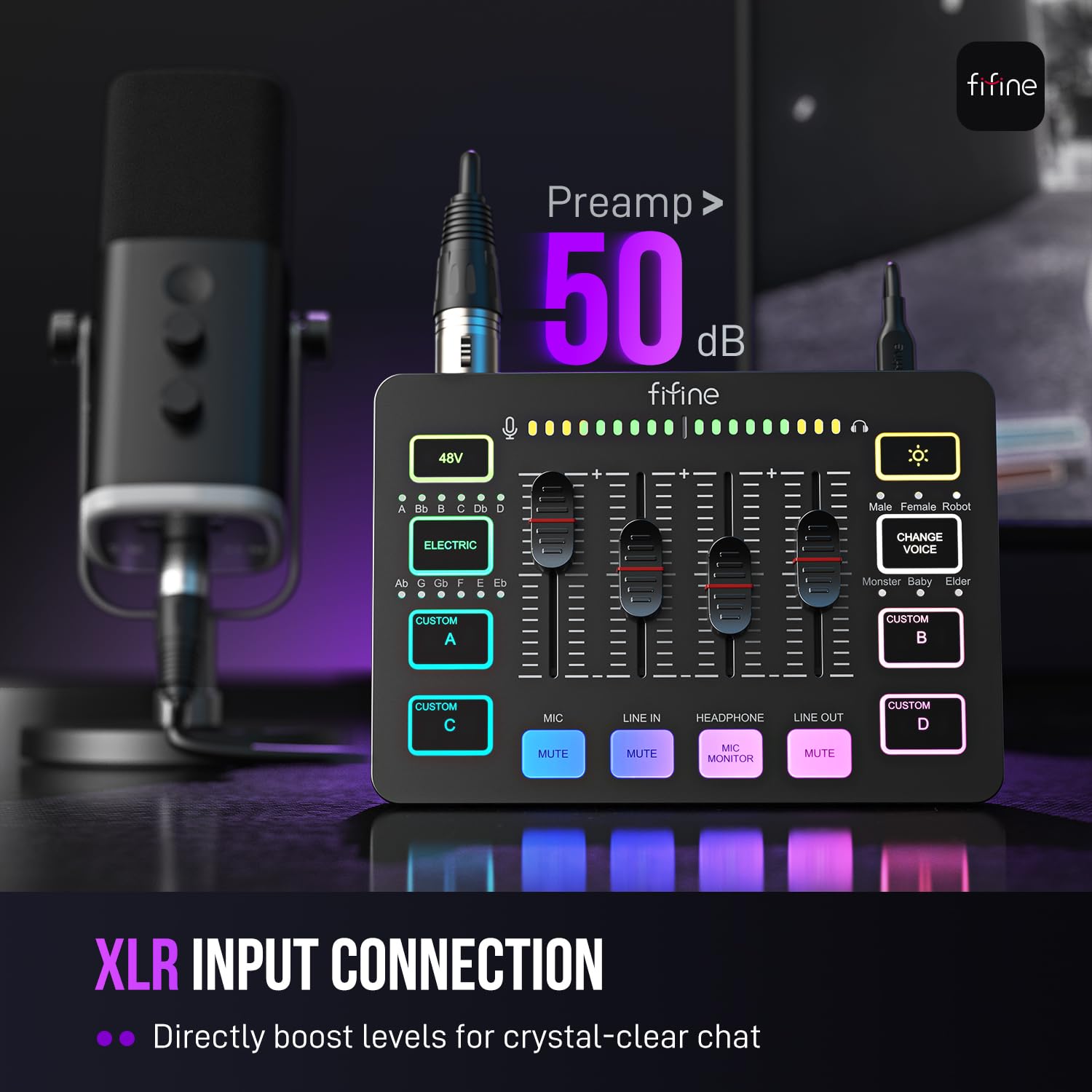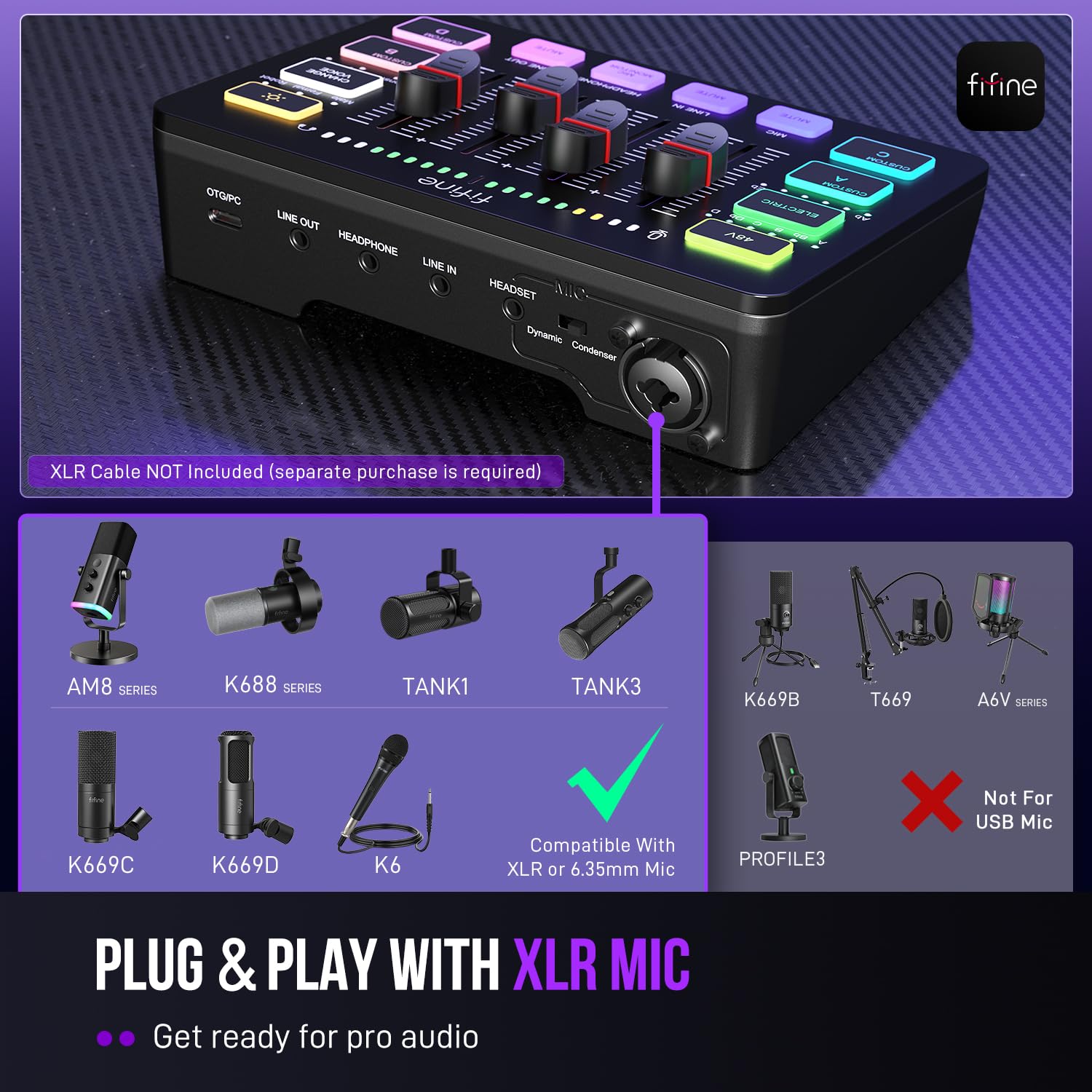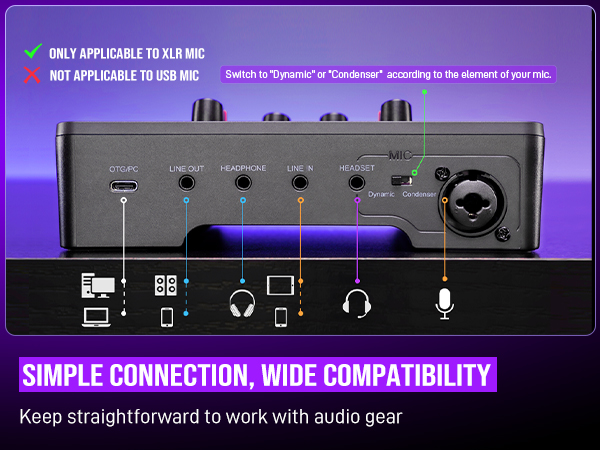









[XLR Mic Input] One XLR microphone input interface is set on the gaming audio mixer, which is great to up your audio quality with your XLR setup. The XLR mixer is a stepping stone to upgrade your live streaming. Audio mixer offered built-in 48V phantom power which opens up more choices for mics. Directly use it with your condenser microphone but do not solve added peripherals. (NOT available for USB mic)
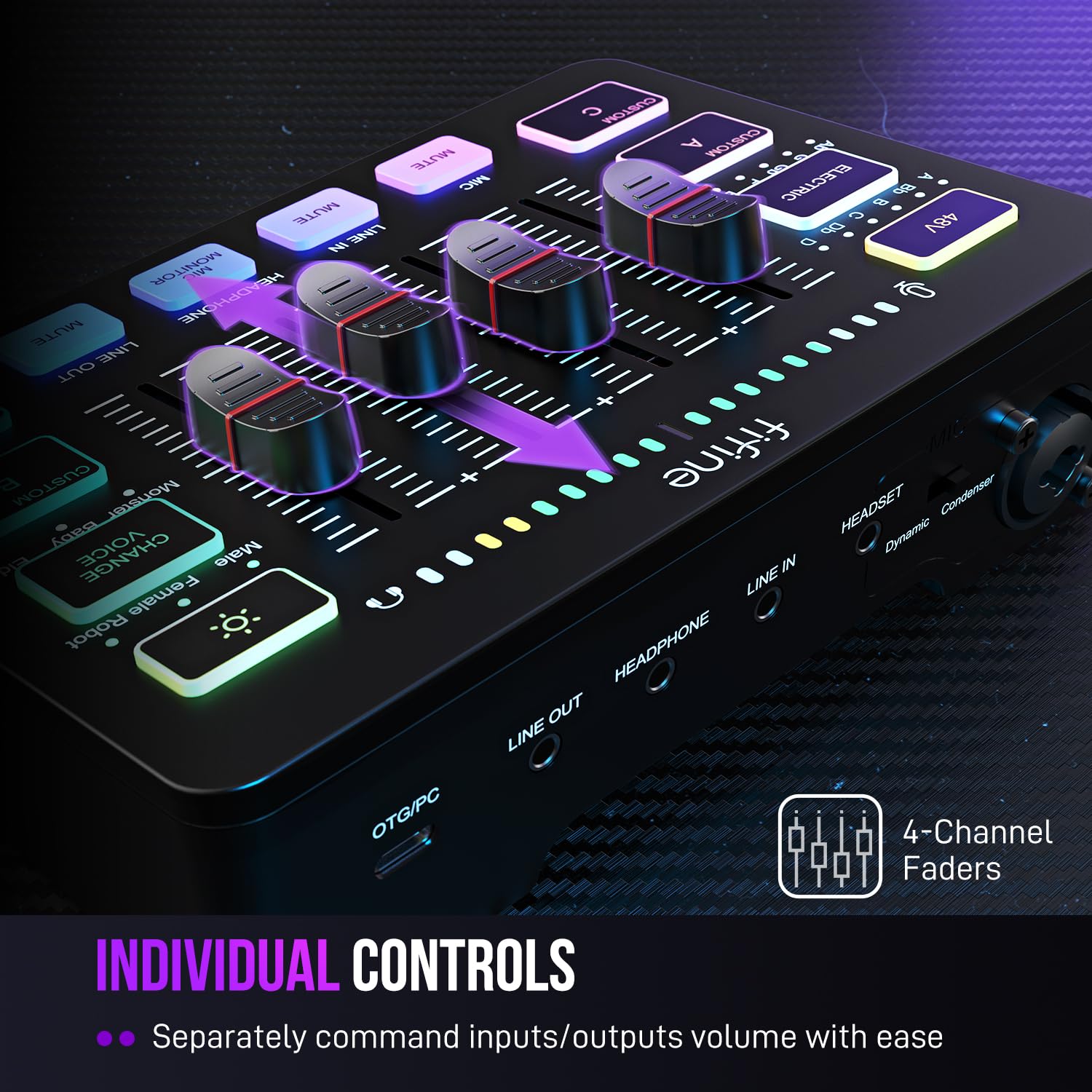
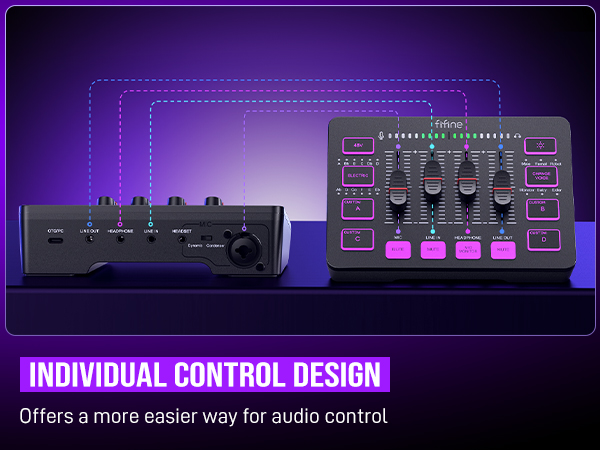
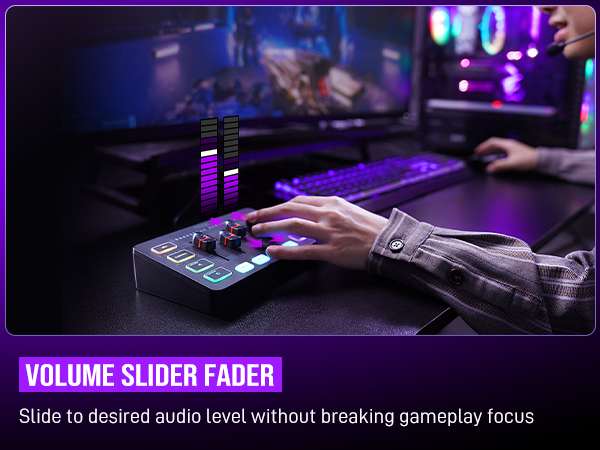
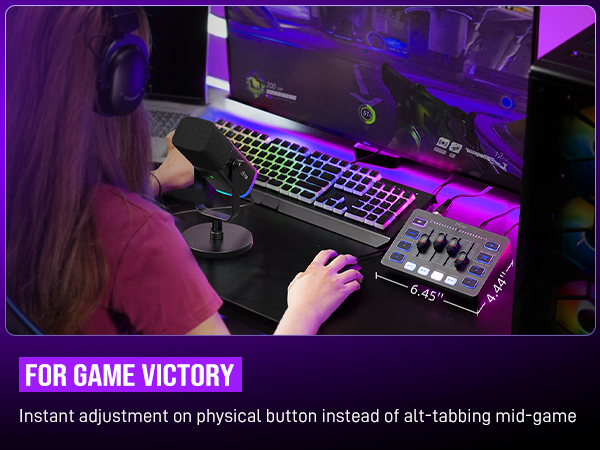
[Individual Channel Control] Gaming audio mixer for one mic recording with smooth volume slider fader take your streaming recording to a whole new level with full pleasure. Four independent channels set on the DJ mixer give audio volume of the MICROPHONE, LINE IN, HEADPHONE, and LINE OUT channels individual control. Configurable on the PC audio mixer instead of just operating on your game or streaming software.
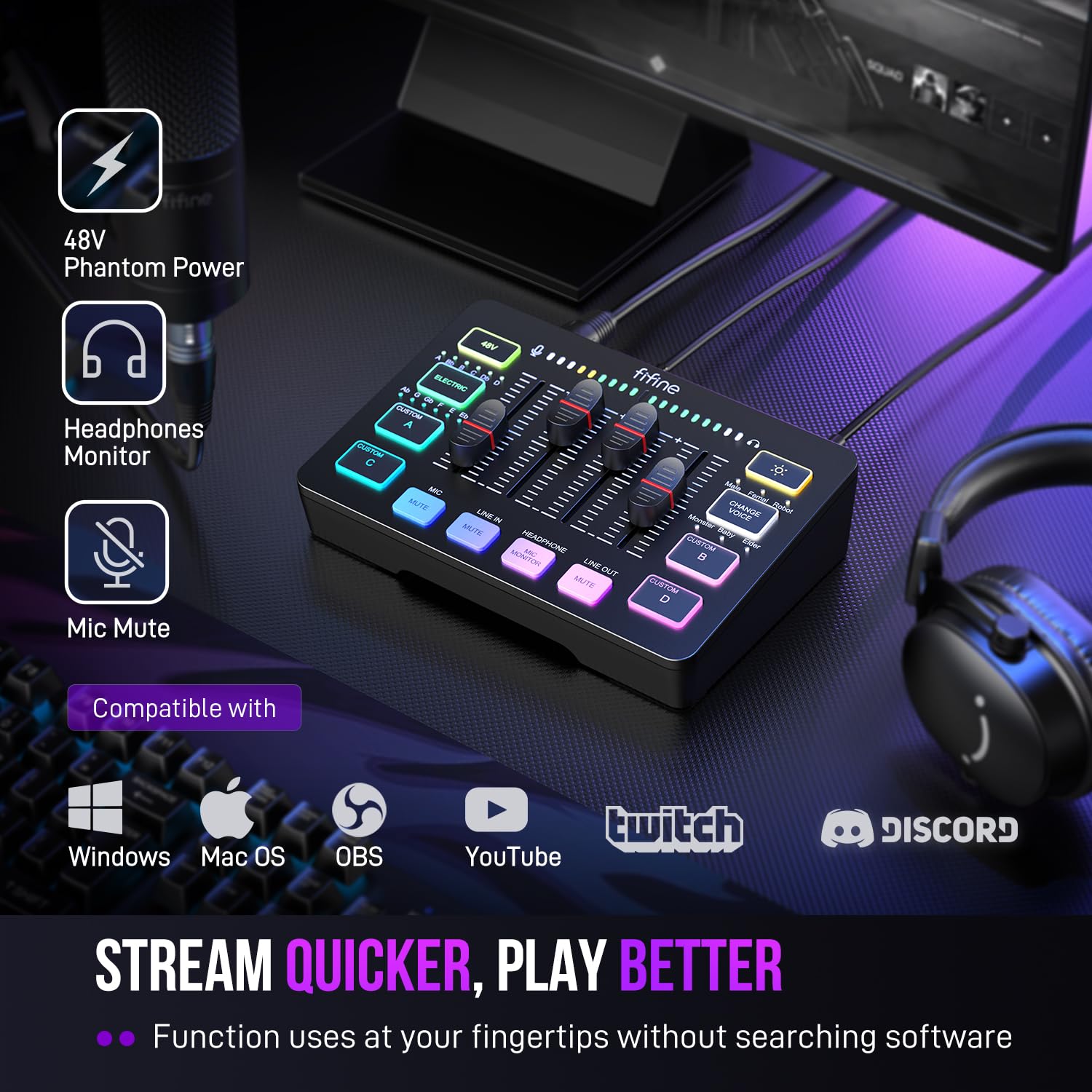
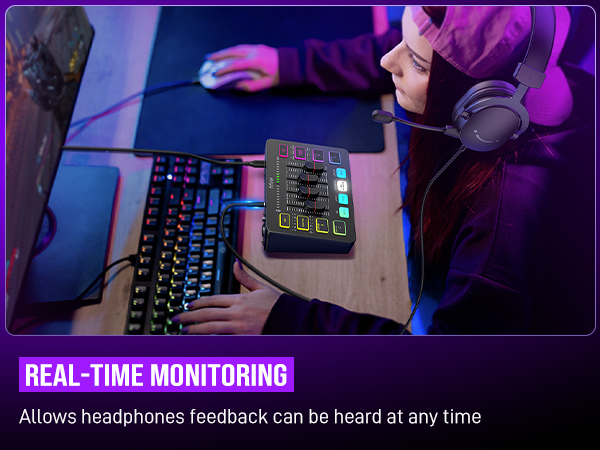
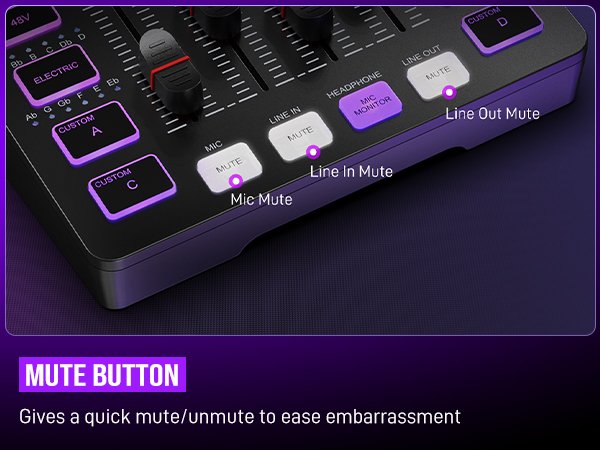
[Mute and Monitor] The front mute and monitor buttons but not at the back, make it easier to get the audio interface use. Ability to mute audio, the audio mixer for streaming prevents background noise from damaging your live broadcast. Real-time feedback between speaking and hearing will not distract your attention, which encourage you to speak more confidently. The sturdy-built control button allow you to operate freely and easily during live streaming.
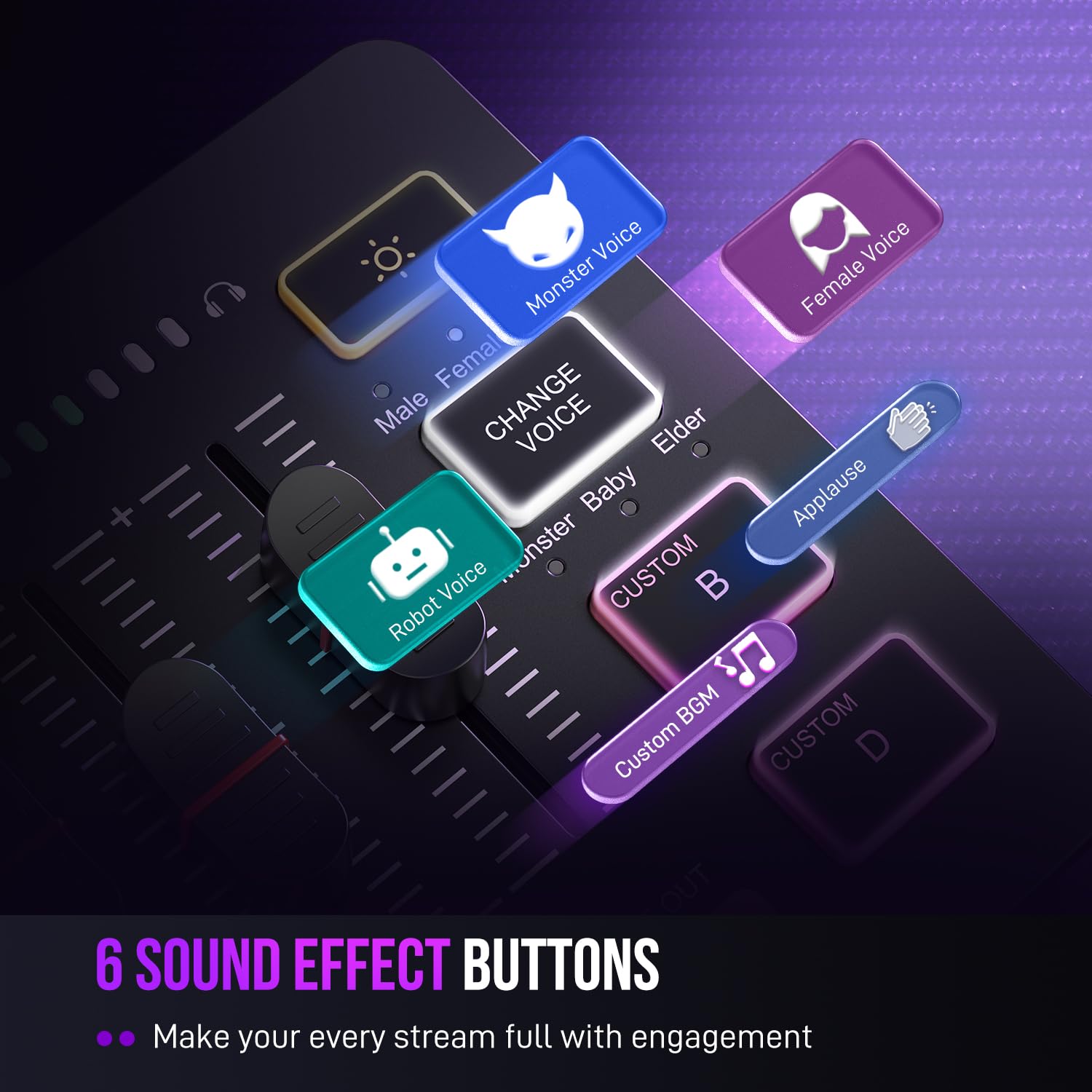
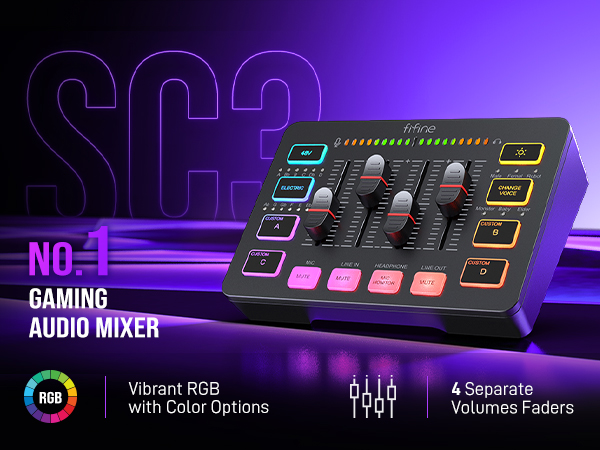
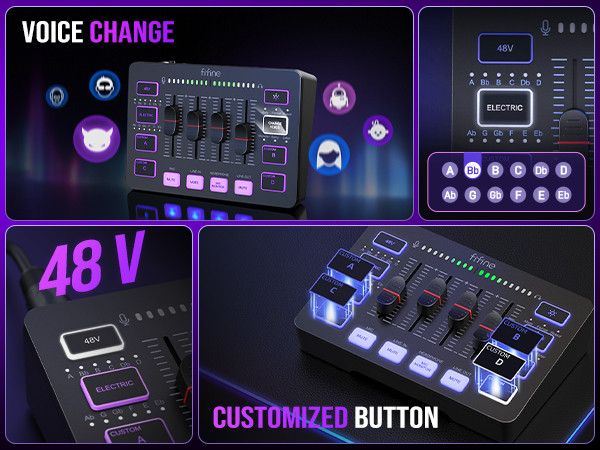
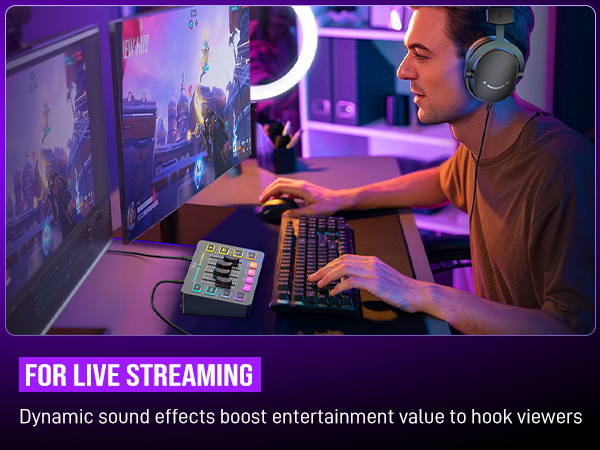
[Sound Effects] The computer sound mixer supports four pre-recorded customized button that can be recorded and activated at the press of button to post production. 6 kinds of voice changing modes change your output style. 12 auto tune changes the tone of your voice. The podcast mixer being able to add different and fun effects is a huge bonus for your streaming or game voice.
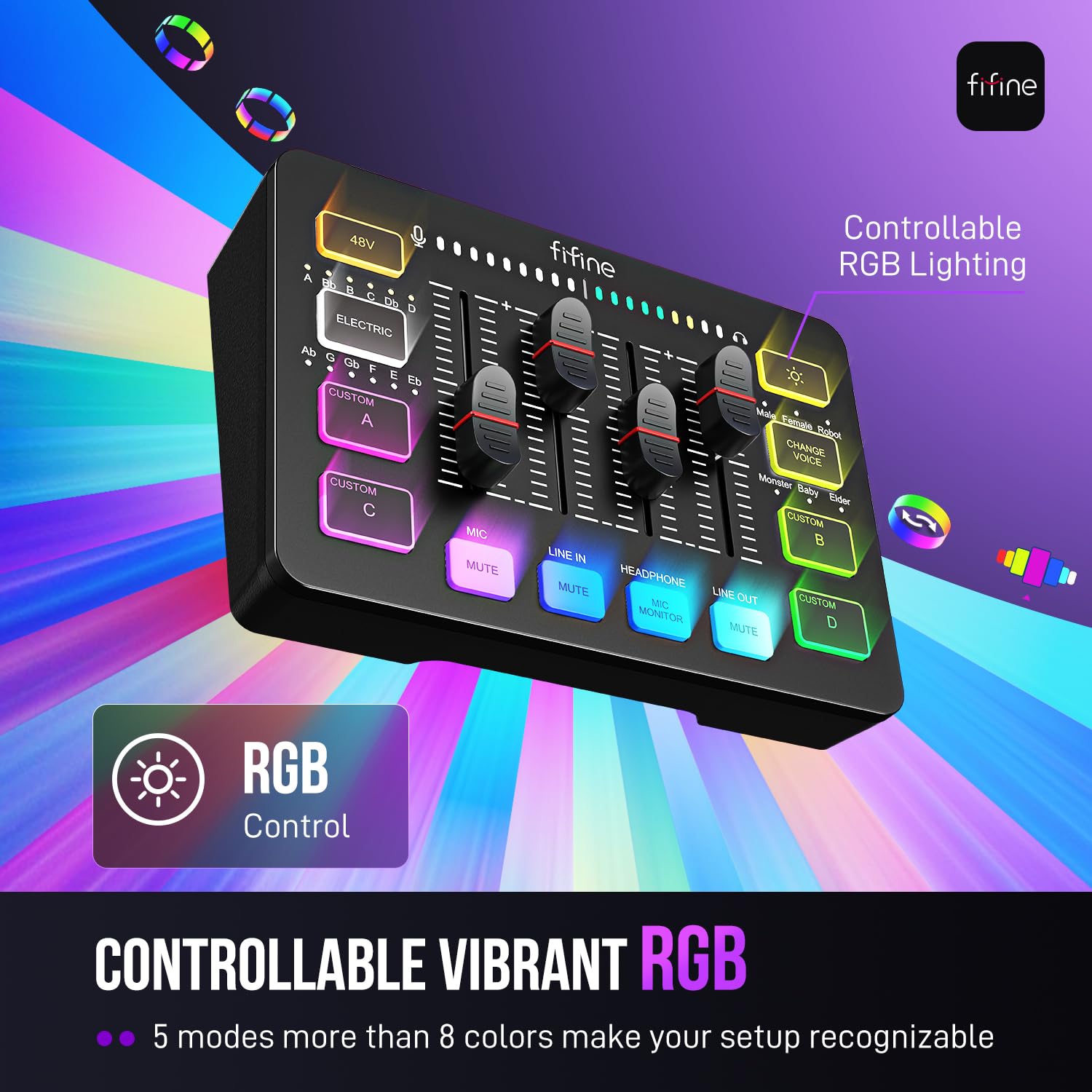
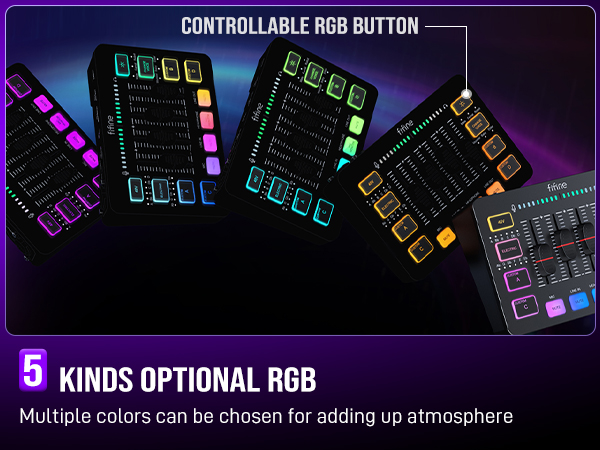
[Controllable Vibrant RGB] RGB button on the audio mixer DJ meets different live streaming themes. Lights on the video mixer is vibrant but not harsh on your eyes. Flowing or frozen RGB color rotation in a decent pace presents a greatly strong impression as a "light show" to your audience. Even a streaming equipment accessory will not be dull looking when video production.
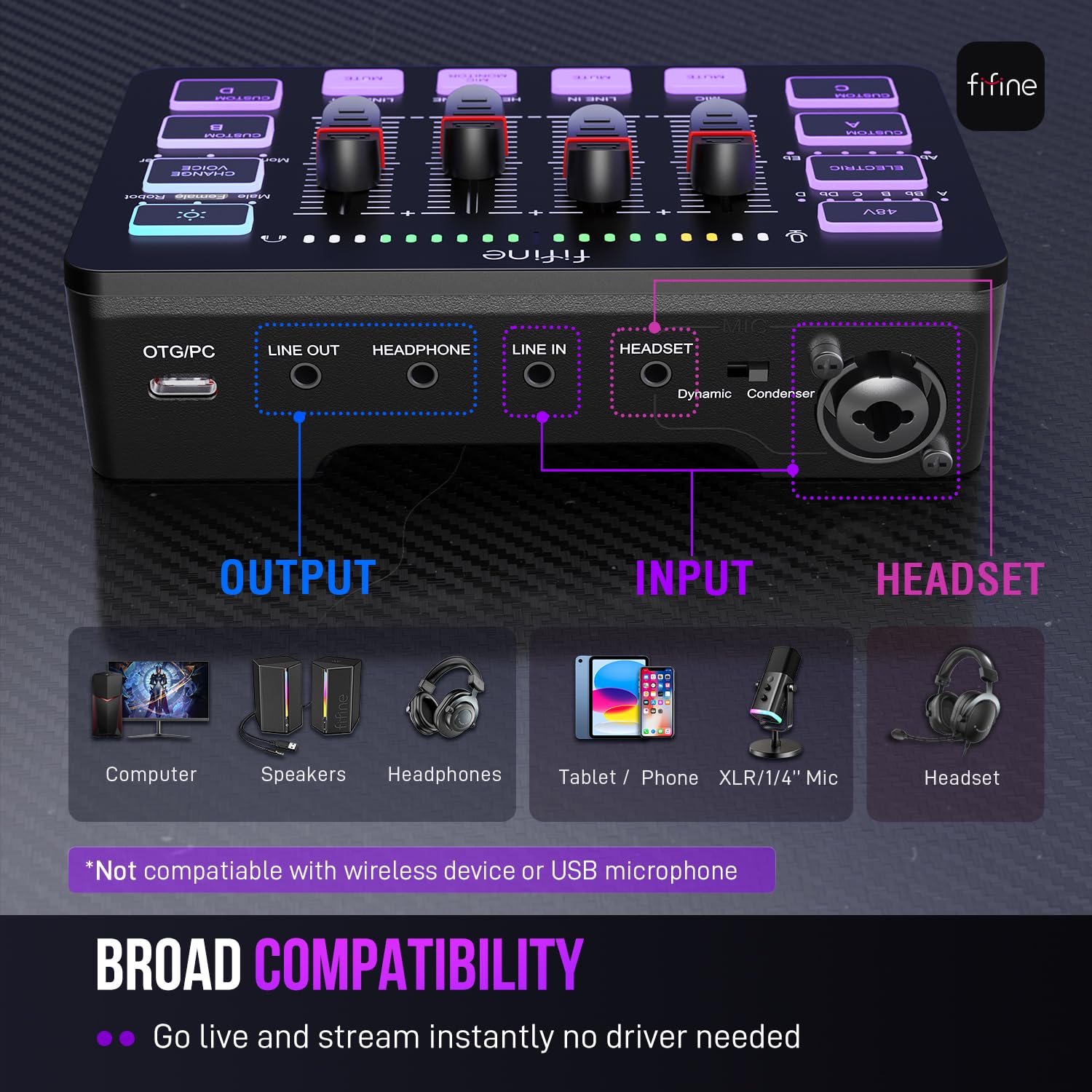
[Easy Use for More Scenes] The streamer setup mixer features easy and intuitive audio port to support two PC settings or audio mixing, able to physically balance music, game or audio settings. Plug 'n play solution works well with Mac OS/Windows. The computer DJ mixer for beginners brings breadth to live streaming on OBS, online chat on Twitch, Youtube/Tiktok video creation. The audio mixer is set with two input and two output interface (Mic and Line in, Headphones and Line out) and a headset interface.
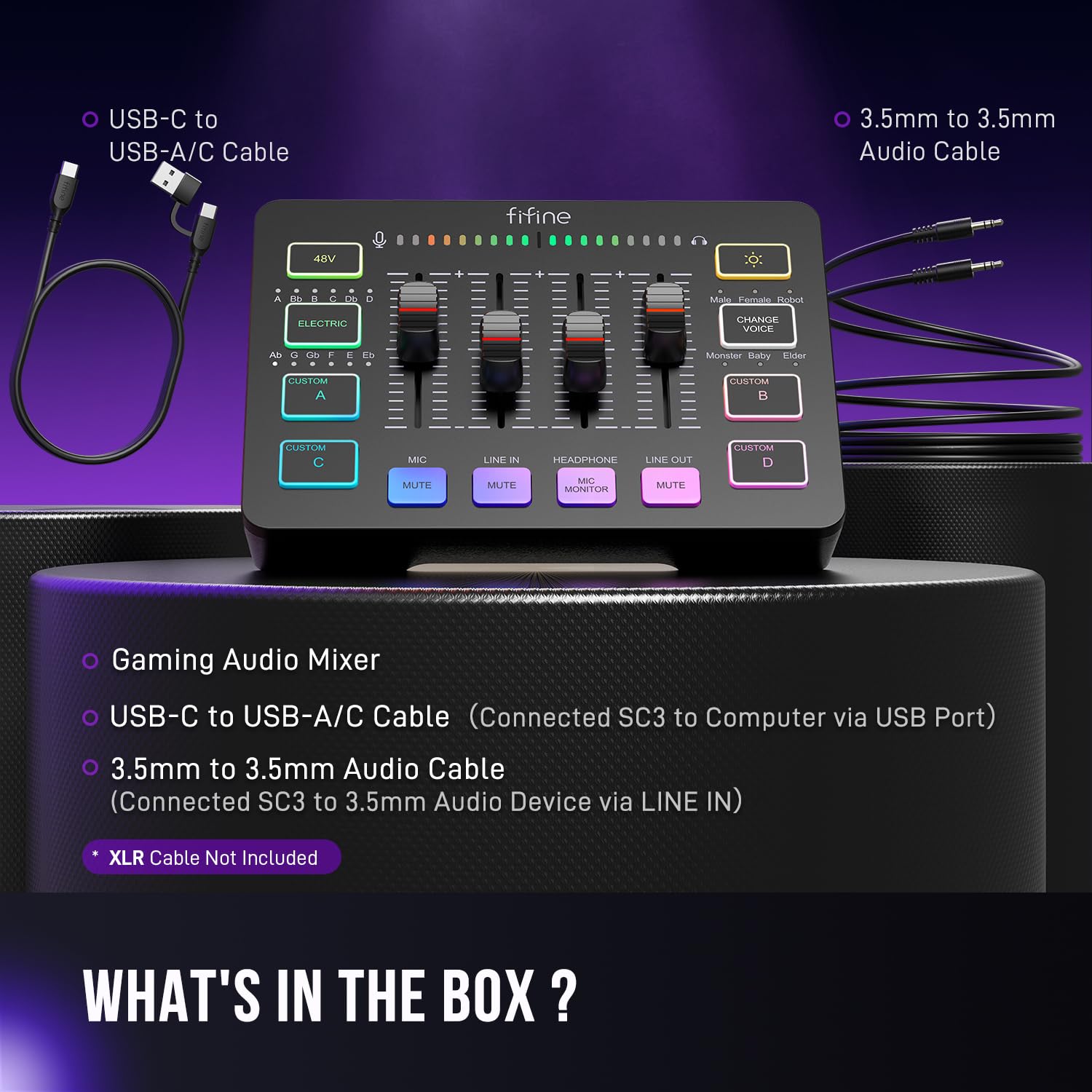
Tips: 1.) USB-C to USB-A/C cable used to connect mixer and computer via Type-C interface on the mixer. 3.5mm to 3.5mm audio cable used to connect mixer and 3.5mm audio device (like phone or tablet) via LINE IN on the mixer 2.) XLR cable NOT included. 3.) Input Interface: Mic, LINE IN and Headset. 4.) Output Interface: Headphones, LINE OUT and Headset.
Product Specifications
Customer Reviews: 4.3 out of 5 stars 3,338Reviews
Best Sellers Rank: #81 in Musical Instruments (See Top 100 in Musical Instruments) #1 in DJ Mixers
Product Information
Product description
Can I adjust the mic gain by using this audio mixer?
Sure! The audio mixer comes with mic volume fader. You can push the fader gradually from the zero until desired loudness depending on your mic gain.
When do I need to turn on the 48V phantom power?
The mixer offers 48V phantom power for XLR condenser mic. Check the mic's specs. Press "48V" button to turn on (in white light) if needed. Turn it off if not needed to avoid damage or noise. Phantom power does not enhance mic volume.
Can I use the audio mixer with a condenser mic or dynamic mic?
Yes, the audio interface has XLR input for condenser mic or dynamic mic (but not compatible for USB mic). Remember to switch to "Dynamic" or "Condenser" according to the element of your mic by using the switch beside the XLR input to minimize noise.
What headphones can I use with this audio mixer?
It is suggested to use 3.5mm wired headphones (TRS or TRRS) whose impedance is 32 or 64 ohms. Like Fifine H8 (ASIN: B0B6BPVS3Z). Please note that the MIC MONITOR button is turned on and HEADPHONE channel volume not to zero during monitoring.
Can I listen to my voice while recording on a Windows computer?
Yes. Just make sure that the mixer is set as the output and input device of the computer, then check the box "Listen to this device" from the sound setting, and turn on the MIC MONITOR button on the mixer. (MIC MONITOR button in white means on)